
UX, Information Architecture & Accessibility
Complexity is easy to build. Clarity takes work.
WebCraft Labz designs digital experiences around how people actually find information, make decisions, and complete tasks.
For content-heavy websites, public-facing platforms, applications, and organizations serving multiple audiences, good UX starts long before colors and components. It starts with structure.
Structure before screens
A cleaner interface cannot fix a confusing structure
When a large site is hard to use, the cause is almost never the visual design. It is underneath, in decisions that were reasonable when each one was made.
Navigation mirrors the org chart
Menus built from departments rather than from what people came to do. Internally obvious, and useless to anyone who does not already know which department owns their problem.
Content accumulated for years
Nothing was ever removed, because removing something needs a decision and adding something does not.
Several audiences, one structure
Residents, staff, members, and partners all arriving at the same entrance, wanting different things from it.
Important tasks are buried
The three things most people came for sit four levels down, at the same weight as everything else.
Naming is inconsistent
The same thing called three names across the site, none of which is the name the public uses for it.
Pages duplicate each other
Two or three near-identical pages, each partly out of date, none clearly the authoritative one.
Organizational complexity is on display
The interface exposes how the organization is arranged internally, making its structure the visitor's problem to solve.
Information architecture
Deciding what exists, what it is called, and where it lives
Information architecture has a forbidding name and a plain job: work out what you have, group it the way your audience thinks about it, and name it in their words.
Content inventory
A full list of what actually exists, with traffic and last-updated dates against it. Most organizations have never seen this, and it changes the conversation immediately.
Page hierarchy
What sits under what, and why. Depth is a cost — every level added is a decision someone has to make correctly to reach the thing they want.
Taxonomy
The categories and terms used to describe content, defined once and applied consistently rather than invented per page.
Labelling
Using the words the audience uses. Internal terminology is the single most common reason people cannot find something that is right in front of them.
Content relationships
Which items belong with which — a service and its forms, a program and its locations — so related things surface together rather than being separately hunted for.
Grouping
Deciding what belongs together from the visitor's point of view, which is frequently not how the organization files it.
User pathways
The routes through the structure that actually get used, designed rather than left to emerge.
Multi-department structures
Several internal owners publishing into one coherent site, instead of the site fragmenting into several sites wearing the same header.
Multi-audience structures
One structure that serves distinct groups without forcing everyone through a choose-your-audience gate on the homepage.
Content consolidation
Merging duplicates into one authoritative page, and being explicit about what gets retired rather than leaving it live and stale.
Why structure first
A redesign that only changes the surface tends to buy about eighteen months before the same complaints return.
How people get to something
Four steps, and any one of them can lose the visit
Most structural problems are a failure at exactly one of these, which is why fixing the wrong one changes nothing.
User need
Someone arrives with a specific thing they are trying to do, usually described in their words rather than yours.
Path
Navigation, search, a link from elsewhere, or a search engine dropping them into the middle of the site.
Information
The page or record that answers it — ideally the authoritative one, not a near-duplicate.
Action
Apply, book, download, contact, or simply leave knowing the answer. The point of the previous three steps.
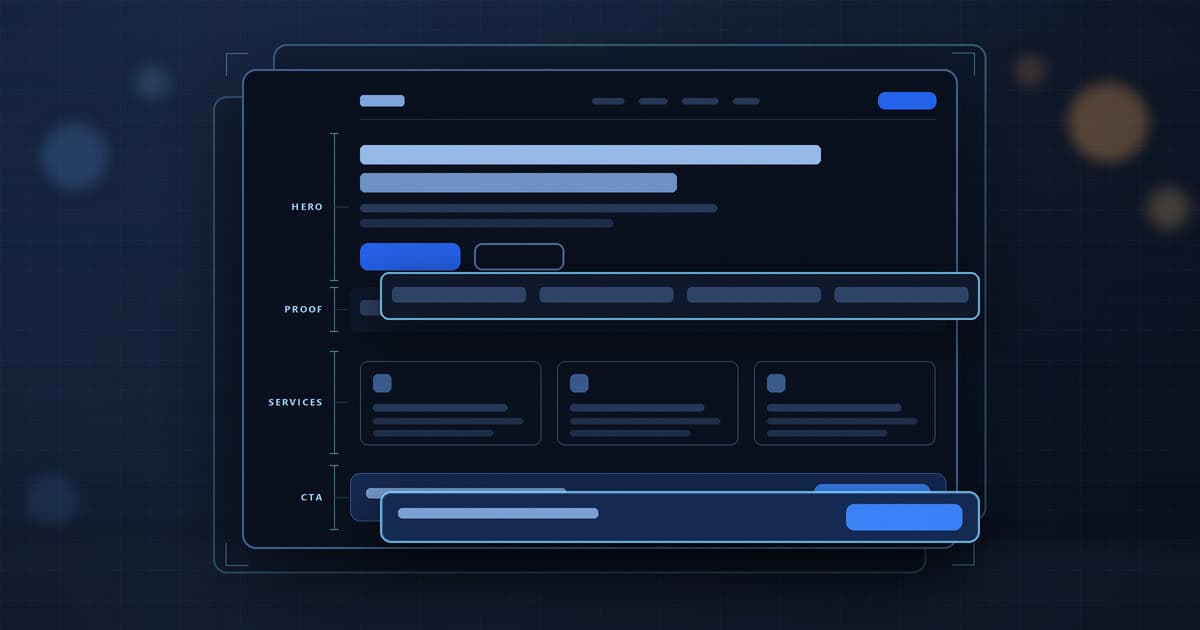
Navigation
Built for how people think about you
The best navigation reflects how your audience understands the organization, which is rarely the same as how the organization is arranged internally. Both can exist; only one of them should be the primary route.
Primary navigation
The small number of entries that have to carry most of the traffic. Its job is to be predictable, not complete.
Secondary navigation
Section-level structure that appears once you are somewhere, so the primary menu does not have to hold everything.
Mega menus, where they earn it
Useful when a section genuinely has many peer destinations worth previewing. A liability when used to avoid deciding what matters.
Contextual links
The next step from where you are — often more valuable than the global menu, and usually the most neglected part of a large site.
Breadcrumbs
Orientation in a deep structure, and a way back out that does not depend on the browser's back button.
Mobile navigation
Designed for a small screen rather than the desktop menu folded into a hamburger, which is where deep hierarchies fall apart first.
Three ways in, none of them the only way
These are not tiers. A large site regularly runs two of them alongside the structural menu.
Task-based navigation
Built from
What people came to do
Depends on
Agreeing which handful of actions matter most
In practice
Organised around what people came to do — apply, pay, book, report — sitting alongside the structural menu rather than replacing it.
Audience-based navigation
Built from
Which group the visitor is in
Depends on
People being able to tell which group they are
In practice
Routes for distinct groups, used carefully: it works when the groups genuinely need different things, and fails when people cannot tell which one they are.
Service-based navigation
Built from
The service catalogue itself
Depends on
A catalogue named in the audience's words
In practice
The service catalogue as a first-class way in, for organizations whose whole purpose is delivering services.
Search, filtering & discovery
When navigation alone stops being enough
Once a site holds hundreds or thousands of items, no menu can reach them all. The work moves to querying — which depends on the content actually being structured, not just published.
That dependency is the reason this capability and content & data systems keep turning up on the same project.
Site search
Searching the real content, with results that are ranked sensibly and behave properly when nothing matches.
Faceted filtering
Several filters applied together, with counts that update and a state you can bookmark or send to someone.
Categories
The primary grouping, kept small enough to scan and stable enough to learn.
Tags
Cross-cutting terms for the relationships a single hierarchy cannot express.
Sorting
Newest, nearest, alphabetical — chosen per collection, because the right default differs for a news feed and a directory.
Location filters
Geography as a real filter: nearest, within an area, serving a given district.
Program & service filters
Narrowing by eligibility, audience, or type, so someone can get to the subset that applies to them.
Content-type filters
Separating a form from a policy from a news item when the collection mixes them.
Directories
Structured listings with real fields, which is what makes everything above it possible in the first place.
Document & resource discovery
Finding the file people actually came for, without needing to know which department published it.
From the work
Structure first, then access
Two examples, annotated for the structural and accessibility decisions rather than the visual ones.
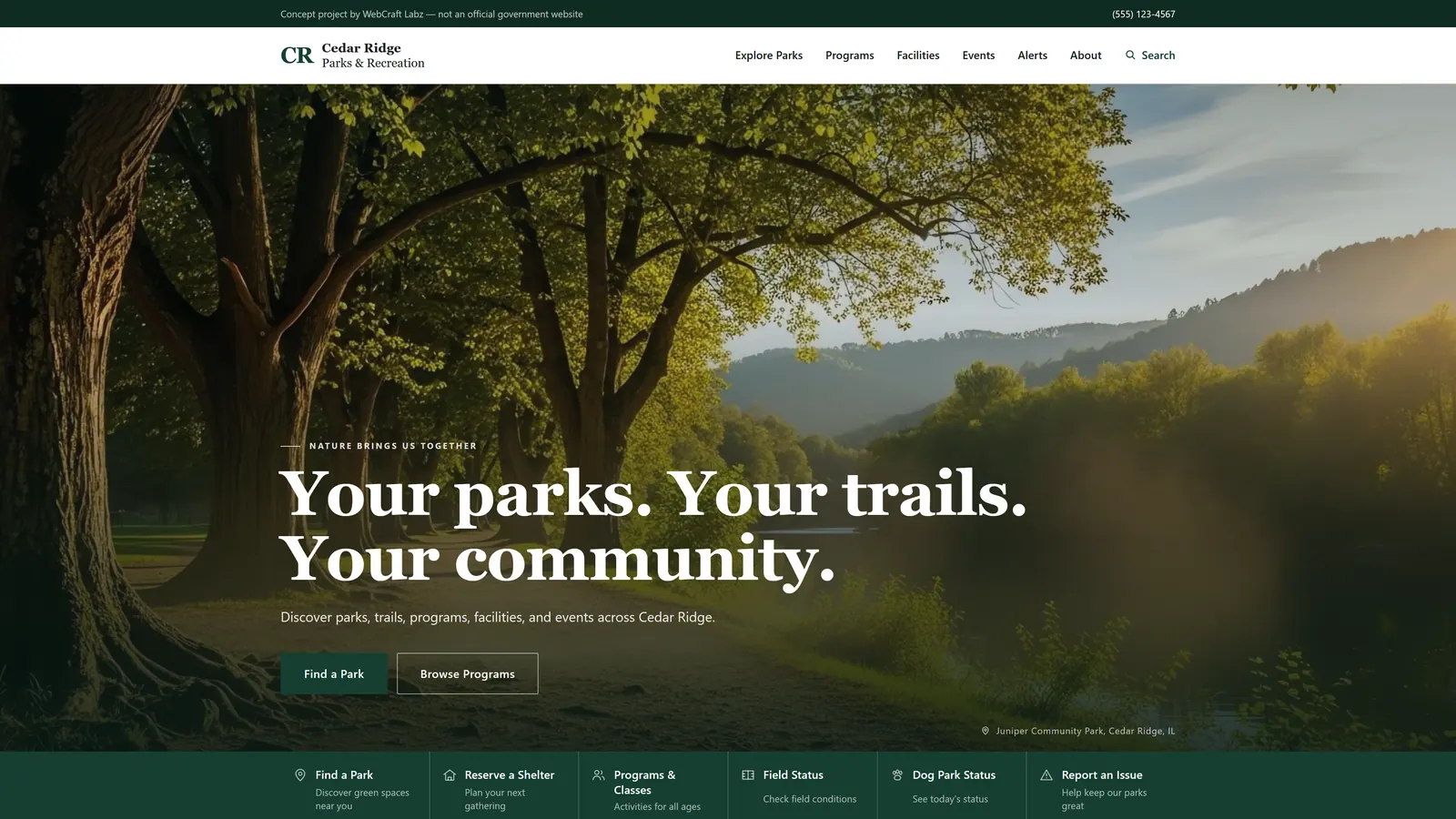
Cedar Ridge Parks & Recreation
Business demoAn independent municipal parks and recreation concept demonstrating civic UX, responsive public-service design, structured content, and custom PHP development.
- Structural problem
- Parks and recreation websites often bury the tasks residents actually need behind department-oriented navigation and dense information structures.
- Information architecture
- Responsive civic information architecture
- Role
- UX strategy + design + development
- Built with
- PHP · HTML · CSS · JavaScript · REST API
Cedar Ridge is not a real municipality. A business demo: a real deployed site WebCraft Labz built to show how this kind of platform should work, not a client engagement. The full record, labelled for what each project actually is, is in the portfolio.
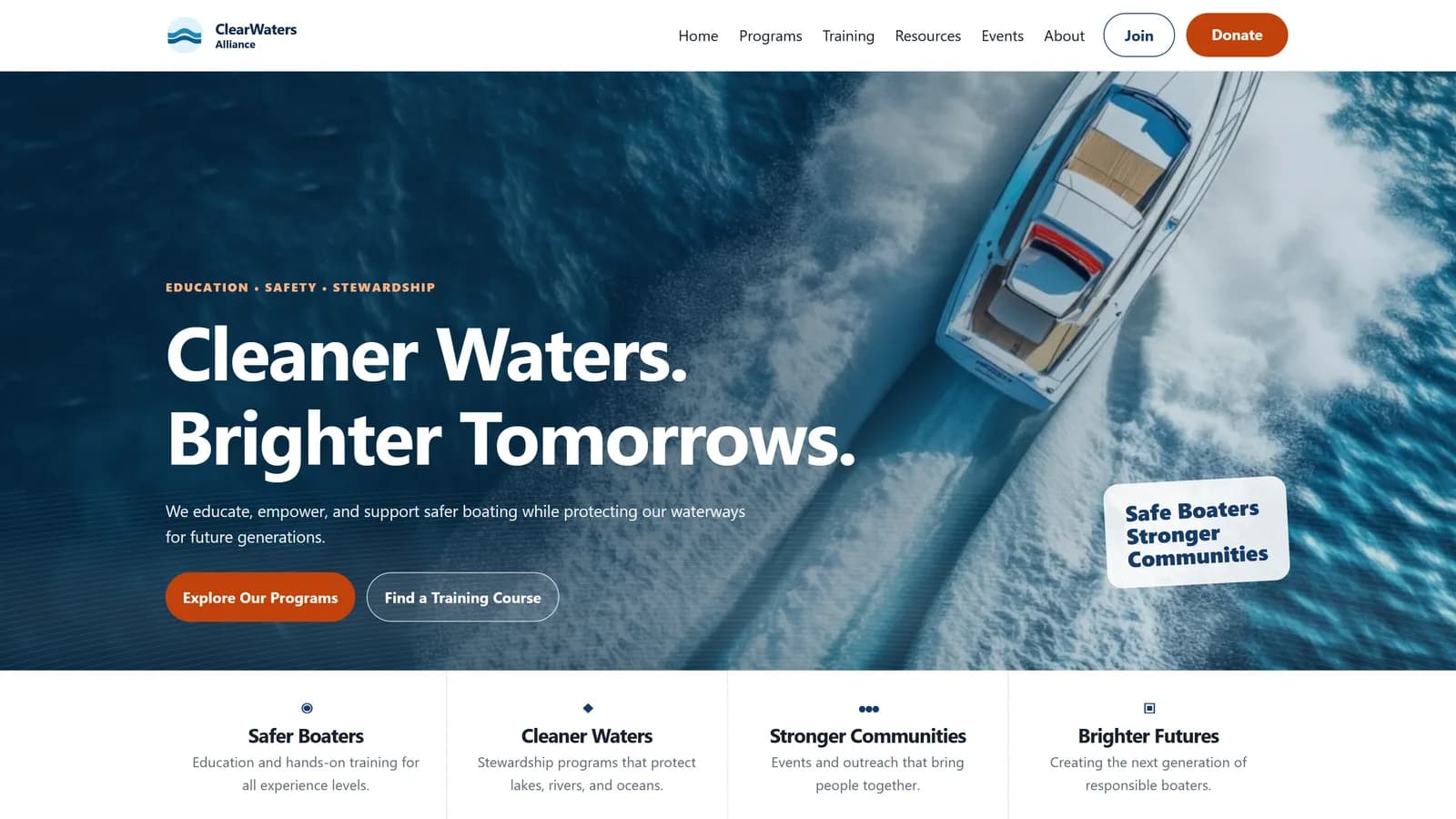
ClearWaters Alliance
Business demoClearWaters Alliance is a fictional public-service and nonprofit showcase built to demonstrate how a flexible WordPress CMS can support education, training, community events, and public resources within one coherent content system.
- Structural problem
- Public-service and nonprofit websites often serve several audiences at once while managing programs, training, events, and educational resources in different formats. The challenge was to make that content easy to manage internally and easy for visitors to discover without turning the site into a collection of disconnected pages.
- Accessibility work
- Skip-to-content link ahead of the main navigation
- Semantic landmarks: header, main, footer, and labelled navigation
- One h1 per page with a structured h2/h3 hierarchy beneath it
- Decorative imagery given empty alt text so screen readers skip it
- No horizontal overflow down to a 320px viewport
- WCAG 2.2 AA-minded contrast across text and interface colour
- Role
- Strategy, UX/UI, content architecture, WordPress development, accessibility, and performance optimization
- Built with
- WordPress · PHP · ACF · HTML · CSS · JavaScript
ClearWaters Alliance is a fictional WebCraft Labz demonstration, not a real nonprofit. Its Donate and Join features are illustrative and do not process donations or registrations. A business demo: a real deployed site WebCraft Labz built to show how this kind of platform should work, not a client engagement. The full record, labelled for what each project actually is, is in the portfolio.
User flows & task design
Fewer steps, and less uncertainty at each one
A flow is not finished when it is possible to complete. It is finished when someone knows, at every step, where they are and what happens next.
Finding a service
From a general need to the specific service that covers it.
Submitting a request
Structured intake with a reference the person can quote afterwards.
Booking something
Time, space, or equipment, against real availability.
Finding a facility
What is nearby, what it offers, and whether it is open.
Locating a document
The current version, findable without knowing its internal title.
Completing a form
Start to submitted, including the pause in the middle.
Accessing an account
Signing in and reaching your own information in as few steps as possible.
Comparing options
Seeing two or three choices side by side on the dimensions that decide it.
Discovering a program
Learning something exists that the person did not know to look for.
Moving between related content
Following a thread across the site without returning to the menu each time.
Forms & interaction
Where most digital services are actually lost
A form is the narrowest point of almost every online service. Small decisions in it have a disproportionate effect on how many people finish.
Form structure
Grouping and order that follow the task rather than the database table the answers land in.
Progressive disclosure
Showing what is relevant now and revealing the rest as it becomes relevant, instead of a wall of fields.
Validation
Checked at the moment it helps — usually on leaving a field, not on every keystroke and not only on submit.
Error states
Messages next to the field that caused them, saying what is wrong and what a correct answer looks like.
Confirmation states
Clear evidence that it worked, what happens next, and a reference number where one exists.
Labels
Persistent, properly associated labels — not placeholder text that vanishes the moment someone starts typing.
Instructions
Guidance placed before the field it applies to, where it can still change what someone types.
Mobile input behavior
The right keyboard per field, sensible autofill, and targets big enough to hit while standing up.
Multi-step forms
Visible progress, the ability to go back without losing answers, and a save point on anything long.
Conditional fields
Branching that changes what is asked based on earlier answers, so nobody answers questions that do not apply to them.
Accessible interaction patterns
Controls built from real form elements, with state changes announced rather than only shown.
Accessibility
WCAG-focused development, built in rather than audited on
These are build decisions. Every one of them is cheaper and better when made while the thing is being built than when retrofitted afterwards.
Semantic HTML
Real headings, lists, landmarks, buttons, and form elements, so assistive technology gets the same structure a sighted reader sees.
Keyboard navigation
Everything reachable and operable without a mouse, in an order that matches the visual one, with no traps.
Focus states
Always visible, never removed for aesthetics, and moved deliberately when a dialog or a new view opens.
Color contrast
Checked against the actual background in both themes, rather than assumed from the brand palette.
Heading structure
One h1, no skipped levels, and headings that describe the section rather than being chosen for their size.
Labels & names
Every control with an accessible name, including icon-only buttons, which are the most common omission.
Form accessibility
Associated labels, errors linked to their fields, and required state conveyed in more than colour.
Touch targets
Large enough and far enough apart to hit reliably, which mostly benefits people using a phone one-handed.
Screen-reader considerations
Meaningful alt text, decorative images left unannounced, and dynamic updates announced once rather than repeatedly.
Responsive usability
Content reflowing at high zoom without horizontal scrolling or overlapping controls.
Reduced motion
Honouring the operating-system preference, so animation is an enhancement rather than something to endure.
Accessibility as usability
The same changes make it easier for everyone
This is not a moral argument, it is an observation about where the work lands. Most accessibility measures fix an ordinary usability problem at the same time.
Clearer labels
A field labelled for a screen reader is a field labelled for someone filling it in on a phone, in a hurry, for the first time.
Stronger hierarchy
Heading structure that works for assistive technology is the same structure that lets a sighted reader skim and find their section.
Better keyboard interaction
Full keyboard operation is what power users and staff working through a queue actually want, all day.
Readable contrast
Contrast checked properly is contrast that still works on a laptop outdoors or on a cheap monitor in a bright office.
Predictable navigation
Consistent placement and naming reduces the load for everyone, not only for people using assistive technology.
Larger touch targets
Sized for motor impairment is sized for a cold day, a cracked screen, or a bus.
Better form feedback
Errors that are announced and located are errors that get corrected rather than abandoned.
Mobile UX
Not the desktop layout, made smaller
For most public-facing sites the phone is the majority case, not the degraded one. Several patterns that work on a desktop have to be replaced rather than shrunk.
Navigation on small screens
A deep hierarchy has to be rethought for a phone, not folded into a hamburger and hoped for.
Thumb-friendly controls
The controls people use most placed where a thumb reaches without a grip change.
Dense data
What to show, what to collapse, and what to move behind a detail view when the screen holds a fraction of the columns.
Tables
Either restructured into records or given honest horizontal scrolling inside their own container — never allowed to push the page sideways.
Maps
Usable at small size, with the list and the map kept in step and both reachable.
Filters
Filtering on a phone needs its own pattern, with applied state visible after the panel closes.
Forms
The right keyboard, sensible autofill, and steps short enough to finish standing up.
Responsive content hierarchy
What leads on a phone is not always what leads on a desktop, because the amount visible at once is different.
Content design
The words are part of the interface
Not a copywriting service — the structural half of content. How a page is headed, grouped, and labelled decides whether the structure underneath it is any use.
Headings
Descriptive enough that the headings alone summarise the page, because for many readers that is all they read.
Scannability
Short paragraphs, real lists, and the answer near the top rather than after the background.
Page structure
A consistent shape for pages of the same kind, so people learn one layout instead of a dozen.
Labels
Link and button text that says where it goes or what it does, read on its own and out of context.
Call-to-action clarity
One obvious next step per page, named as the thing it does rather than "learn more".
Content grouping
Related information kept together instead of scattered across sections that each mention part of it.
Plain language
Writing at the reading level of the audience, not the reading level of the policy the content came from.
Repeated content patterns
Recurring components — a service summary, a location block — defined once so every instance behaves the same.
Especially useful for
Where structure is the whole project
Project types this capability is built for. Our verified record of what we have built, labelled for what each thing actually is, is in the portfolio.
Public-sector & municipal websites
Many services, many departments, and an audience with no choice but to use it.
Nonprofit platforms
Programs, donors, members, and the public served from one structure by a small team.
Education websites
Prospective students, current students, staff, and families each following a different route through the same content.
Content-heavy organizations
Where the volume of material is the thing that makes it hard to use.
Resource centers & directories
Collections that stop working on navigation alone and need search, filtering, and a real content model.
Portals & dashboards
Applications where task flow, states, and permissions decide whether the thing gets used.
Large redesigns
Where the structural work is the project and the visual refresh is the visible part of it.
Multi-location organizations
Shared content with genuine per-location differences that have to stay findable.
How a project runs
Audit, structure, flows, interface, build, validate
UX is not a decorative phase before development. Each stage produces something the next one is built from, and the last two are where the decisions become real.
Audit
Content inventory, analytics, existing navigation, and the questions your team already fields repeatedly. What exists and what gets used, before any opinion about what should change.
Structure
Hierarchy, taxonomy, labelling, and grouping. The part that determines whether anything else works, and the part most redesigns skip.
Flows
The routes through that structure for the tasks that matter most, including what happens when someone arrives in the middle from a search engine.
Interface
Screens designed with their empty, loading, error, and permission-denied states — not only the version where everything works.
Build
Semantic markup, keyboard operability, contrast, and responsive behavior as build constraints rather than a closing audit.
Validate
Keyboard and screen-reader passes, contrast checks, and testing on real devices against real content.
Questions
What organizations usually ask first
Is this a design service or a development service?
Both, and the split is part of the problem it solves. Information architecture, flows, and accessibility are decided during design but only exist once they are built — semantic structure, keyboard operability, and focus management are code. We do the structural work and the build, which is why the decisions survive into the finished thing rather than being lost at handover.
Can you do this on our existing site without a full rebuild?
Often, yes. A content audit, a navigation restructure, better search and filtering, and an accessibility pass are all possible on an existing platform, and that is frequently the higher-value project. Whether it is worth doing depends on what the current CMS lets you change — which is something the audit establishes early.
Do you guarantee WCAG or ADA compliance?
No, and be cautious of anyone who does. We do WCAG-focused development: semantic markup, keyboard operability, visible focus, contrast checked against real backgrounds, labelled controls, and announced state changes, all built in rather than retrofitted. Formal conformance auditing and legal compliance are separate specialist disciplines, and we will say so directly rather than implying our build substitutes for them.
Do you run user research and usability testing?
Not with recruited participants — that is specialist work we would bring in rather than claim in-house. What we do use is evidence you already have: analytics, site search queries, the questions your team answers repeatedly, and the content inventory. That is usually enough to identify the structural problems, and it costs nothing extra to look at.
Our navigation matches our departments. Is that wrong?
It is not wrong, it is just organised for the wrong reader. Internal structure is genuinely useful to staff and to anyone who already knows who owns what. The fix is rarely to delete it — it is to put a task-based or service-based route alongside it, so someone who does not know your org chart never has to learn it.
How do you decide between more navigation and better search?
Volume, mostly. Below a few hundred items, good structure and navigation will usually outperform search. Above that, navigation alone stops scaling and the work moves to filtering, categorisation, and a content model that supports querying. Most large sites need both, with the balance decided from the actual inventory rather than a preference.
Related capabilities
Where this connects
This capability rarely ships on its own. It is usually the structural half of a website or an application project.
Websites & Digital Platforms
Where this work most often lands: redesigns, rebuilds, and content-heavy sites for organizations with several audiences.
Websites & Digital Platforms →Applications & Digital Tools
Dashboards, portals, directories, and booking — where task flow and interface states are the product.
Applications & Digital Tools →Content, Data & Platform Systems
The content model and data layer that structured navigation, filtering, and search depend on.
Content, Data & Platform Systems →Technical SEO & Performance
Structure and semantics serve findability twice — once for people, once for search engines.
Technical SEO & Performance →All capabilities
The four primary capability areas and the specialised work alongside them.
All capabilities →
Related reading
How to Build a Marketing Website That Converts: A Structural Blueprint
Page structure as the thing that decides whether a site works, written as a blueprint rather than a theory.
Read the article →Why Your Website Isn't Converting: The WebCraft Conversion Diagnostic
Diagnosing structural problems in order, with the repair sequence that follows from what you find.
Read the article →Your Company Was Designed for a World That No Longer Exists
Why information architecture and organizational architecture turn out to be the same problem.
Read the article →
Start a project
Tell us what people cannot find.
A menu nobody uses, a search box that returns nothing useful, a form people abandon, or an accessibility problem you have been told about but not scoped — describe it and we'll tell you straight what it takes.